Purchase 1: displaying payment instructions
When performing a purchase, the customer follows the payment instructions displayed on the checkout page or in your system (when performing the purchase by using Gate).
| Countries and regions | Russian Federation |
| Payment currencies | RUB |
| Payment amount limits | Contact your key account manager at Monetix for details. Also you can check the payment amount limits in your project by using Dashboard. |
| Payment processing time | Contact your key account manager at Monetix for details. |
| Currency conversion |  |
| Refund | |
| Onboarding and access fee | Contact your key account manager at Monetix for details. |
Special considerations
| |
Operations support
| Interfaces | |||
|---|---|---|---|
| Payment Page | Gate | Dashboard | |
| Purchase |  |
|
|
You can check the payment amount limits in your project by using Dashboard. To check your payment amount limits, go to Dashboard, select the Projects section, and then click the Payment methods tab.
The following sections provide more information about the payment processing flow and the analysis of completed payments.
Purchase by using Payment Page
General information
To perform a purchase by using Payment Page with the Faster payments system payment method:
- Send a request with all the required parameters and signature to the Monetix URL.
- Accept the callback with the purchase result from the payment platform.
The following figure shows the complete purchase processing flow in the Faster payments system payment method.
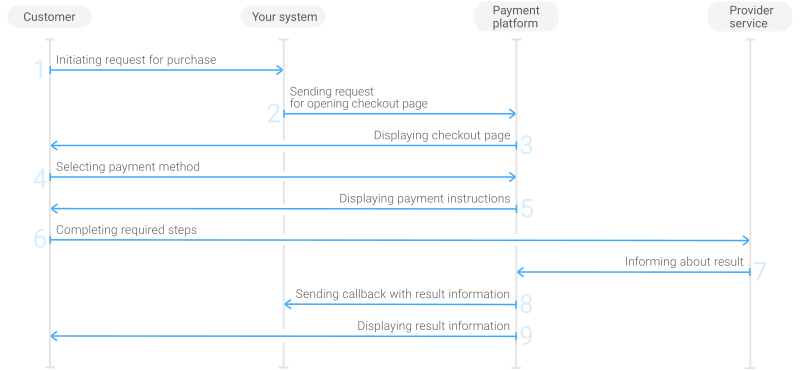
- The customer initiates a purchase in your system.
- Your system sends the request for the purchase through Payment Page to the Monetix URL.
- The checkout page is displayed to the customer.
- The customer chooses to make a purchase with the Faster payments system payment method.
- The checkout page displays the payment instructions to the customer.
- The customer completes the purchase.
- The provider service sends the purchase result information to the payment platform.
- The payment platform sends a callback with the payment result to your system.
- The payment platform displays the payment result to the customer on the checkout page.
Request
The following table lists the parameters that you have to include in the request for purchase through the checkout page with the Faster payments system payment method.
|
||
|---|---|---|
| Parameter | Description | |
project_id | Project ID you obtained from Monetix when integrating. Example: | |
payment_id | Payment ID unique within your project. Example: | |
customer_id | Unique ID of the customer within your project. Example: | |
customer_first_name | Customer's first name. Example: | |
customer_last_name | Customer's last name. Example: | |
customer_email | Customer's email. Example: | |
payment_currency | Code of the payment currency in the ISO-4217 alpha-3 format.
The currency of the payment can be only RUB. Example: | |
payment_amount | Payment amount in minor currency units without any decimal point or comma except for the cases when the currency doesn't have any minor currency units. If the currency doesn't have any minor units (i.e. the number of digits for minor currency units is zero), set this parameter to the amount in the major currency units. To check whether the currency has any minor units, see Currency units and Currency codes. Example: 100.00 RUB must be sent as | |
force_payment_method | Parameter that allows you to enforce the Faster payments system payment method for your customer and skip the page with payment method selections. To enforce the Faster payments system payment method and skip the page with payment method selection, add the force_payment_method parameter to the request and set its value to Example: | |
signature | Signature created after you've specified all the request parameters. For more information about signature generation, see Signature generation and verification. | |
| You can also add any other optional parameters to the request, if necessary. For the list of all the parameters possible in requests to Payment Page, see Payment Page invocation parameters. | ||
Here is an example of the data from a request to open the checkout page by using
EPayWidget:
EPayWidget.run(
	{
		project_id: 1234,
		payment_id: 'payment_47',
		customer_id: 'customer_123',
		customer_first_name: 'John',
		customer_last_name: 'Doe',
		customer_email: 'johndoe@example.com',
		payment_currency: 'RUB',
		payment_amount: 10000,
		force_payment_method: 'sbp-qr',
		signature: 'kUi2x9dKHAVNU0FYldJrxh4yo+52Kt8KU+Y19vySO/RLUkDJrOcZzUCwX6R/ekpZhkIQg=='
	}
)
Callback
In the Faster payments system payment method, the payment platform returns the purchase result in a callback. For the information about the callback structure, see Callbacks in Payment Page.
the callbacks contain provider commission in the provider_commission parameter of the payment object. For information about commission amount, refer to your Monetix key accout manager.
The following is an example of a callback body with information about a successfully completed purchase.
{
    "project_id": 1234,
    "payment": {
        "id": "payment_47",
        "type": "purchase",
        "status": "success",
        "date": "2024-12-07T19:08:45+0000",
        "method": "sbp-qr",
        "sum": {
            "amount": 10000,
            "currency": "RUB"
        },
        "description": ""
    },
    "customer": {
        "id": "customer_123"
    },
    "operation": {
        "id": 47,
        "type": "sale",
        "status": "success",
        "date": "2024-12-07T19:08:45+0000",
        "created_date": "2024-12-07T19:08:05+0000",
        "request_id": "1a23456bc7890de",
        "sum_initial": {
            "amount": 10000,
            "currency": "RUB"
        },
        "sum_converted": {
            "amount": 10000,
            "currency": "RUB"
        },
        "code": "0",
        "message": "Success",
        "provider": {
            "id": 12345,
            "payment_id": "123abc123-123",
            "auth_code": ""
        }
    },
    "provider_commission": "6000",
    "signature": "U7HQO7ToISZhMPKdM4XrUKQtoYzFvoB3cs9CRd4xeYG2Q=="
}
The following is an example of a callback for a declined purchase.
{
    "project_id": 1234,
    "payment": {
        "id": "payment_47",
        "type": "purchase",
        "status": "decline",
        "date": "2024-12-07T19:08:45+0000",
        "method": "sbp-qr",
        "sum": {
            "amount": 10000,
            "currency": "RUB"
        },
        "description": ""
    },
    "customer": {
        "id": "customer_123"
    },
    "operation": {
        "id": 47,
        "type": "sale",
        "status": "decline",
        "date": "2024-12-07T19:08:45+0000",
        "created_date": "2024-12-07T19:08:05+0000",
        "request_id": "1a23456bc7890de",
        "sum_initial": {
            "amount": 10000,
            "currency": "RUB"
        },
        "sum_converted": {
            "amount": 10000,
            "currency": "RUB"
        },
        "code": "20000",
        "message": "General decline",
        "provider": {
            "id": 12345,
            "payment_id": "123abc123-123",
            "auth_code": ""
        }
    },
    "provider_commission": "6000",
    "signature": "U7HQO7ToISZhMPKdM4XrUKQtoYzFvoB3cs9CRd4xeYG2Q=="
}
Purchase by using Gate
General information
To perform a purchase by using Gate with the Faster payments system payment method:
- Send a request with all the required parameters and signature to the Monetix URL.
- Show the screen with payment instructions to the customer.
- Accept the callback with the purchase result from the payment platform.
The following figure provides the details of the purchase processing flow in the Faster payments system payment method.
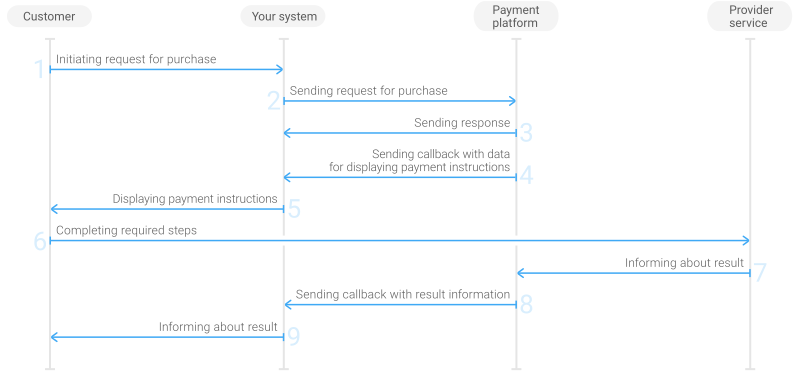
- The customer initiates a purchase in your system.
- Your system sends the purchase request to the Monetix payment platform.
- The payment platform sends you a response in which it acknowledges your request and provides the request validation result. (For more information about the response format, see Response structure.)
- The payment platform generates the data for displaying the payment instructions to the customer and sends the data to your system in the display_data array.
- Your system displays the payment instructions to the customer.
- The customer completes the purchase.
- The provider service informs the payment platform about the purchase result.
- The payment platform sends the callback with the payment result to your system.
- Your system sends the payment result to the customer.
Request
This section provides the instructions on how to build the request for purchase with the Faster payments system payment method.
| HTTP request method | POST |
| Request body format | JSON |
| API endpoint | /v2/payment/sbp-qr/sale |
|
|||
|---|---|---|---|
| Object | Parameter | Description | |
general | project_id | Project ID you obtained from Monetix when integrating. Example: | |
payment_id | Payment ID unique within your project. Example: | ||
signature | Signature created after you've specified all the request parameters. For more information about signature generation, see Signature generation and verification. | ||
customer | id | Unique ID of the customer within your project. Example: | |
ip_address | IP address of the customer's device. Example: | ||
first_name | Customer's first name. Example: | ||
last_name | Customer's last name. Example: | ||
email | Customer's email. Example: | ||
payment | currency | Code of the payment currency in the ISO-4217 alpha-3 format. The currency of the payment can be only RUB. Example: | |
amount | Payment amount in minor currency units without any decimal point or comma except for the cases when the currency doesn't have any minor currency units. If the currency doesn't have any minor units (i.e. the number of digits for minor currency units is zero), set this parameter to the amount in the major currency units. To check whether the currency has any minor units, see Currency units and Currency codes. Example: 100.00 RUB must be sent as | ||
| You can also add any other optional parameters to the purchase request, if necessary. For the list of all the parameters available in Gate, see API Reference. | |||
Here is an example of the data from a request to initiate a purchase with the Faster payments system payment method:
{
    "general": {
        "project_id": 1234,
        "payment_id": "payment_47",
        "signature": "kUi2x9dKHAVNU0FYldJrxh4yo+52Kt8KU+Y19vySO/RLUkDJrOcZzUCwX6R/ekpZhkIQg=="
    },
    "customer": {
        "id": "customer_123",
        "ip_address": "198.51.100.47",
        "first_name": "John",
        "last_name": "Doe",
        "email": "johndoe@example.com"
    },
    "payment": {
        "currency": "RUB",
        "amount": 10000
    }
}
Displaying the payment instructions to the customer
After receiving and processing your purchase request, the payment platform sends you the callback with the data for displaying the payment instructions to the customer.
Use the data from the display_data array to display the payment instructions to the customer.
There are several ways the display_data array can be structured. All of them are described below. Reach out to the Monetix support team (support@monetix.pro) to know which option is relevant to you.
Option 1
| Element | Description |
|---|---|
{
    "type": "qr_data",
    "title": "qr_code_url",
    "data": "https://qr.nspk.ru/example"
}
|
Payment link (in the form of a URL). Example: |
The following is the callback fragment containing display_data array.
"display_data": [
    {
        "type": "qr_data",
        "title": "qr_code_url",
        "data": "https://qr.nspk.ru/example"
    }
]
Option 2
| Element | Description |
|---|---|
{
    "type": "add_info",
    "title": "amount",
    "data": "300000"
}
|
Purchase amount in minor currency units without any decimal point or comma. Sometimes it is impossible to perform purchase for the amount specified in the request due to technical issues on the provider side. In such cases, the Monetix payment platform can send you available amount in the display_data array instead of declining the payment. User should transfer proposed amount. After that, the Monetix payment platform sends you a callback with the changed amount (for more information, see Handling payments with amount changed by customer). Example: |
{
    "type": "add_info",
    "title": "currency",
    "data": "RUB"
}
|
Code of purchase currency in the ISO-4217 alpha-3 format. Example: |
{
    "type": "add_info",
    "title": "lifetime",
    "data": "900"
}
|
QR code expiry time in seconds. Example: |
| The QR code data is always presented in display_data array and is sent in one of the following elements. | |
{
    "type": "add_info",
    "title": "qr_data",
    "data": "https://qr.nspk.ru/example"
}
|
Payment link (in the form of a URL). Example: |
{
    "type": "add_info",
    "title": "qr_data",
    "data": "***|Name=***|...|Sum=***"
}
|
Payment details to be displayed as QR code. Example: |
{
    "type": "add_info",
    "title": "link_nspk",
    "data": "https://qr.nspk.ru/example"
}
|
Payment link (in the form of a URL). Example: |
The following is the callback fragment containing display_data array.
"display_data": [
    {
        "type": "add_info",
        "title": "amount",
        "data": "300000"
    },
    {
        "type": "add_info",
        "title": "currency",
        "data": "RUB"
    },
    {
        "type": "add_info",
        "title": "lifetime",
        "data": "900"
    },
    {
        "type": "add_info",
        "title": "qr_data",
        "data": "https://qr.nspk.ru/example"
    }
]
Along with the payment link contained the display_data array it is recommended to provide the customer with the list of supported banks and instructions for the mobile application on the Faster Payments System website, as well as notify the customer to check the browser settings and allow the opening of applications by using links (if the mobile banking application is meant to be opened by using the URL).
Callback
In the Faster payments system payment method, the payment platform returns the purchase result in a callback. For the information about the callback structure, see Callbacks in Gate.
the callbacks contain provider commission in the provider_commission parameter of the payment object. For information about commission amount, refer to your Monetix key accout manager.
The following is an example of a callback body with the information about a successfully completed purchase.
{
    "project_id": 1234,
    "payment": {
        "id": "payment_47",
        "type": "purchase",
        "status": "success",
        "date": "2024-12-07T19:08:45+0000",
        "method": "sbp-qr",
        "sum": {
            "amount": 10000,
            "currency": "RUB"
        },
        "description": ""
    },
    "customer": {
        "id": "customer_123"
    },
    "operation": {
        "id": 47,
        "type": "sale",
        "status": "success",
        "date": "2024-12-07T19:08:45+0000",
        "created_date": "2024-12-07T19:08:05+0000",
        "request_id": "1a23456bc7890de",
        "sum_initial": {
            "amount": 10000,
            "currency": "RUB"
        },
        "sum_converted": {
            "amount": 10000,
            "currency": "RUB"
        },
        "code": "0",
        "message": "Success",
        "provider": {
            "id": 12345,
            "payment_id": "123abc123-123",
            "auth_code": ""
        }
    },
    "provider_commission": "6000",
    "signature": "U7HQO7ToISZhMPKdM4XrUKQtoYzFvoB3cs9CRd4xeYG2Q=="
}
The following is an example of a callback for a declined purchase.
{
    "project_id": 1234,
    "payment": {
        "id": "payment_47",
        "type": "purchase",
        "status": "decline",
        "date": "2024-12-07T19:08:45+0000",
        "method": "sbp-qr",
        "sum": {
            "amount": 10000,
            "currency": "RUB"
        },
        "description": ""
    },
    "customer": {
        "id": "customer_123"
    },
    "operation": {
        "id": 47,
        "type": "sale",
        "status": "decline",
        "date": "2024-12-07T19:08:45+0000",
        "created_date": "2024-12-07T19:08:05+0000",
        "request_id": "1a23456bc7890de",
        "sum_initial": {
            "amount": 10000,
            "currency": "RUB"
        },
        "sum_converted": {
            "amount": 10000,
            "currency": "RUB"
        },
        "code": "20000",
        "message": "General decline",
        "provider": {
            "id": 12345,
            "payment_id": "123abc123-123",
            "auth_code": ""
        }
    },
    "provider_commission": "6000",
    "signature": "U7HQO7ToISZhMPKdM4XrUKQtoYzFvoB3cs9CRd4xeYG2Q=="
}