Payout
When performing a payout, the customer initiates a payout and then just waits for the funds to be credited to their account. The customer themself doesn't participate in the payout processing procedure.
| Countries and regions | All countries |
| Payment currencies | WMZ (USD), WME (EUR) |
| Payment amount limits | Contact your key account manager at Monetix for details. Also you can check the payment amount limits in your project by using Dashboard. |
| Payment processing time | Contact your key account manager at Monetix for details. |
| Currency conversion | On the Monetix side |
| Refund |  |
| Onboarding and access fee | Contact your key account manager at Monetix for details. |
Special considerations
| |
Operations support
| Interfaces | |||
|---|---|---|---|
| Payment Page | Gate | Dashboard | |
| Payout | |
 |
|
You can check the payment amount limits in your project by using Dashboard. To check your payment amount limits, go to Dashboard, select the Projects section, and then click the Payment methods tab.
The following sections provide more information about the payment processing flow and the analysis of completed payments.
Payout by using Gate
General information
To perform a payout by using Gate with the WebMoney payment method:
- Send a request with all the required parameters and signature to the Monetix URL.
- Accept the callback with the payout result from the payment platform.
The following picture provides the details of the payout processing flow in the WebMoney payment method.
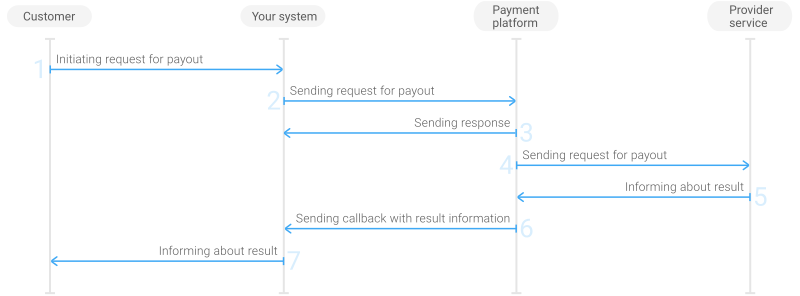
- The customer initiates a payout in your system.
- Your system sends the payout request to the Monetix payment platform.
- The payment platform sends you a response in which it acknowledges your request and provides the request validation result. (For more information about the response format, see Response structure.)
- The payment platform processes the request and forwards it to the provider service.
- The provider service informs the payment platform about the payout result.
- The payment platform sends a callback with the payout result to your system.
- Your system sends the payout result to the customer.
Request
This section provides the instructions on how to build the request for payout with the WebMoney payment method.
| HTTP request method | POST |
| Request body format | JSON |
| API endpoint | /v2/payment/webmoney/payout |
|
|||
|---|---|---|---|
| Object | Parameter | Description | |
general | project_id | Project ID you obtained from Monetix when integrating. Example: | |
payment_id | Payment ID unique within your project. Example: | ||
signature | Signature created after you've specified all the request parameters. For more information about signature generation, see Signature generation and verification. | ||
customer | id | Unique ID of the customer within your project. Example: | |
ip_address | IP address of the customer's device. Example: | ||
first_name | Customer's first name. Example: | ||
last_name | Customer's last name. Example: | ||
email | Customer's email. Example: | ||
account | number | Customer WMID that is the customer's ID in the WebMoney service. Example: | |
payment | currency | Code of the payment currency in the ISO-4217 alpha-3 format. Example: | |
amount | Payment amount in minor currency units without any decimal point or comma except for the cases when the currency doesn't have any minor currency units. If the currency doesn't have any minor units (i.e. the number of digits for minor currency units is zero), set this parameter to the amount in the major currency units. To check whether the currency has any minor units, see Currency units and Currency codes. Example: 1.00 RUB must be sent as | ||
description | Payment description should be specified in the request as follows: Top-up of personal account №<customer's bank account number> on the website <URL of the your system>.Example: | ||
protection_code | For payments with protection, you must provide values for parameters of protection code. The customer receives the funds and sees them, but is not able to use them until entering the protection code. If the customer does not enter the code within the time period specified on the your system's side (the protection time), then the funds will be returned to your e-wallet. In this case, the payment status changes to decline. The protection code must be specified on the your system's side in the protection_code parameter, and provided to the customer separately as well. Pass this parameter with the protection_period.Example: code | ||
protection_period | For payments with protection, you must provide values the protection code period parameter. If the customer does not enter the code within the time period specified on the your system's side (the protection time), then the funds will be returned to your e-wallet. In this case, the payment status changes to decline. The protection code time period (the period can vary from 1 to 35 days) must be specified on the your system's side in the protection_period parameter. Pass this parameter with the protection_code.Example: 1 | ||
| You can also add any other optional parameters to the payout request, if necessary. For the list of all the parameters available in Gate, see API Reference. | |||
Here is an example of the data from a request to initiate a payout with the WebMoney payment method:
{
    "general": {
        "project_id": 1234,
        "payment_id": "payment_47",
        "signature": "kUi2x9dKHAVNU0FYldJrxh4yo+52Kt8KU+Y19vySO/RLUkDJrOcZzUCwX6R/ekpZhkIQg=="
    },
    "customer": {
        "id": "customer_123",
        "ip_address": "198.51.100.47",
        "first_name": "John",
        "last_name": "Doe",
        "email": "johndoe@example.com"
    },
    "account": {
        "number": "123456789012"
    },
    "payment": {
        "currency": "RUB",
        "amount": 100,
        "description": "Top-up of personal account №<01234567890> on the website <https://merchant.example.com>.",
        "protection_code": "code",
        "protection_period": "1"
    }
}
Callback
In the WebMoney payment method, the payment platform returns the payout result in a callback. For the information about the callback structure, see Callbacks in Gate.
In the WebMoney method, the callbacks include the payment ID that is generated by the WebMoney service and is passed in the payment_id parameter of the provider object. The successful payout callbacks always contain the payment_id parameter value, but the declined payout callbacks may not contain the parameter value.
The following is an example of a callback body with the information about a successfully completed payout.
{
    "project_id": 1234,
    "payment": {
        "id": "payment_47",
        "type": "payout",
        "status": "success",
        "date": "2024-12-07T19:08:45+0000",
        "method": "webmoney ",
        "sum": {
            "amount": 100,
            "currency": "RUB"
        },
        "description": ""
    },
    "customer": {
        "id": "customer_123"
    },
    "operation": {
        "id": 47,
        "type": "payout",
        "status": "success",
        "date": "2024-12-07T19:08:45+0000",
        "created_date": "2024-12-07T19:08:05+0000",
        "request_id": "1a23456bc7890de",
        "sum_initial": {
            "amount": 100,
            "currency": "RUB"
        },
        "sum_converted": {
            "amount": 100,
            "currency": "RUB"
        },
        "code": "0",
        "message": "Success",
        "provider": {
            "id": 12345,
            "payment_id": "123abc123-123",
            "auth_code": ""
        }
    },
    "account": {
        "number": "123456789012"
    },
    "provider": {
        "payment_id": "WM-payout-121"
    },
    "signature": "U7HQO7ToISZhMPKdM4XrUKQtoYzFvoB3cs9CRd4xeYG2Q=="
}
The following is an example of a callback for a declined payout.
{
    "project_id": 1234,
    "payment": {
        "id": "payment_47",
        "type": "payout",
        "status": "decline",
        "date": "2024-12-07T19:08:45+0000",
        "method": "webmoney ",
        "sum": {
            "amount": 100,
            "currency": "RUB"
        },
        "description": ""
    },
    "customer": {
        "id": "customer_123"
    },
    "operation": {
        "id": 47,
        "type": "payout",
        "status": "decline",
        "date": "2024-12-07T19:08:45+0000",
        "created_date": "2024-12-07T19:08:05+0000",
        "request_id": "1a23456bc7890de",
        "sum_initial": {
            "amount": 100,
            "currency": "RUB"
        },
        "sum_converted": {
            "amount": 100,
            "currency": "RUB"
        },
        "code": "20000",
        "message": "General decline",
        "provider": {
            "id": 12345,
            "payment_id": "123abc123-123",
            "auth_code": ""
        }
    },
    "account": {
        "number": "123456789012"
    },
    "provider": {
        "payment_id": "WM-payout-121"
    },
    "signature": "U7HQO7ToISZhMPKdM4XrUKQtoYzFvoB3cs9CRd4xeYG2Q=="
}
Testing
You can test payouts with the WebMoney payment method by using Gate.
To start performing test payouts, reach out to the Monetix (support@monetix.pro) support team to get the test project ID and a secret key to it and to set up the test environment for the payouts to be performed with the WebMoney payment method.
When performing test payouts, keep in mind that:
- for the project ID you have to submit the ID of the test project
- for the payment ID and customer's data you can submit any random values
Statuses of test payouts
To receive a certain final status when performing test payouts with the WebMoney payment method, your request has to contain a respective payment amount in it. The table below lists the payout amounts you can send in requests in order to get a certain status of a test payout.
| Payout amount | Final status |
|---|---|
| 40000 or 40400 | decline—the payout is declined |
| Any other amount | success—the payout is successful |
Testing payout by using Gate
To perform a test payout by using Gate:
- Send a correct test request for payout to the payment platform.
- Accept a callback containing the data about the result of performing a test payout.
To learn more about performing payouts with the WebMoney payment method by using Gate, see the Payout by using Gate section.
Payout by using Dashboard
- single payout—you specify the currency and amount for a payout available for this method and fill in all the fields required for the selected payment method on the Dashboard pages.
- as a part of a mass payment—all the parameters are specified in a CSV file. Refer to the Payouts by using Gate section for the parameters required by your payment method.
Information about completed payouts is available for viewing in the Payments and Manual Payments sections of Dashboard.
For more information about payout processing by using Dashboard, see Performing payouts.